

Turn your VMware estate
into a migration plan.
Assess, plan and de-risk your move off VMware, VM by VM and stack by stack. VM Migration Advisor reads your vCenter, looks inside your VMs and uses AI to show you what is ready, how each VM should move and where it should go.
See every VM. Decide every move. Plan every wave.
No separate discovery tool to buy. One assessment takes you from inventory to a plan your team can approve.
See
Every VM, application and dependency in one place, including what runs inside each VM.
Decide
Readiness and risk for every VM, and the best target platform for each workload.
Plan
Migration waves, the right order, effort estimates and a way back if something goes wrong.
One assessment. Many decisions.
Teams use VM Migration Advisor whenever a big infrastructure decision needs facts instead of opinions.
Your renewal date is coming. Know your options first.
See which workloads could move, which should stay, and what moving would take, so the renewal conversation starts with facts.
- Full inventory with readiness scores
- Workloads ranked by how easy they are to move
- Effort estimates for each wave
Pick the right platform for every workload.
Each VM and application stack is scored against the target platforms you are considering, so you can see where it fits best and why.
- Platform ranking per VM and per stack
- Rehost, replatform, refactor or retire advice per VM
- Waves that keep dependent VMs together
Most estates are bigger than they need to be.
Find VMs with more CPU, memory or storage than they use, and size them correctly before you move them.
- Oversized and undersized VMs
- Storage capacity and usage
- A smaller, cheaper target footprint
Find the risky VMs before they find you.
Security, operational and migration risks are scored for every VM and every application stack, with clear guidance on what to fix first.
- Firewall rules, open ports and access controls, where the agent is installed
- Risk scores per VM and per stack
- Guidance on what to fix before moving
A hard deadline needs a plan that holds.
Know everything that has to leave the site, what depends on what, and how to fit the moves into the windows you have.
- Complete inventory, including forgotten VMs
- Dependency map across the site
- Wave plan sized to your cutover windows
Dependency mapping, built in.
Most migration programs bring in a separate tool to find out which servers talk to each other, then pay a team to make sense of the results. VM Migration Advisor does it as part of the assessment.
Install the agent
Put the lightweight agent on the VMs you want mapped. It is optional and makes no changes to your applications.
Capture every connection
It records running processes, listening ports and every inbound and outbound connection, so you know what each VM sends and receives.
Build the map
VM Migration Advisor analyzes that traffic to work out which VMs depend on each other, and draws the application dependency map.
- Private IPs only, so outside traffic does not create false links
- Domain controllers and monitoring hubs left out, so the estate does not collapse into one giant stack
- Only active connections counted, not leftover network noise
- Cross-checked against VLAN, cluster placement and shared database signals
- An application dependency map for your estate
- VMs grouped into application stacks
- The right order to move each stack
- An exportable VM map for your own records
Typical migration program
Several vendors, several contracts, and data passed between them.
With SAN Data Systems
Fewer handoffs, and no data passed between vendors.
Three steps to a plan.
Everything runs inside your own environment. Nothing is sent to a SaaS service.
Connect to vCenter
Use a read-only account. Your VM inventory syncs in automatically and stays up to date.
Upload an RVTools export
Can't connect to vCenter? Upload an RVTools export (.xlsx or .xls) and VM Migration Advisor registers your VMs from the file.
Bring in your VMs
Sync from vCenter or upload an RVTools export. Setup takes minutes.
Look inside
Add the optional agent to the VMs you want to see inside. It captures what vCenter cannot: applications, processes, ports and connections.
Get the plan
AI analyzes every VM and gives you scores, platform rankings, waves and effort estimates.
Hardware
CPU, memory, disk usage, GPU, firmware and system details
Operating system
OS version, kernel, uptime, patches and configuration
Running processes
Active workloads with CPU, memory and process details
Applications and services
Installed software and running services with status
Network configuration
Interfaces, IPs, routing, DNS and open ports
Firewall rules
Protocols, ports and access controls
Collected data is matched to the right VM record automatically. Inventory, sizing and readiness work without the agent.
Inside VM Migration Advisor.
A look at the screens your team works with, from the whole estate down to a single VM.
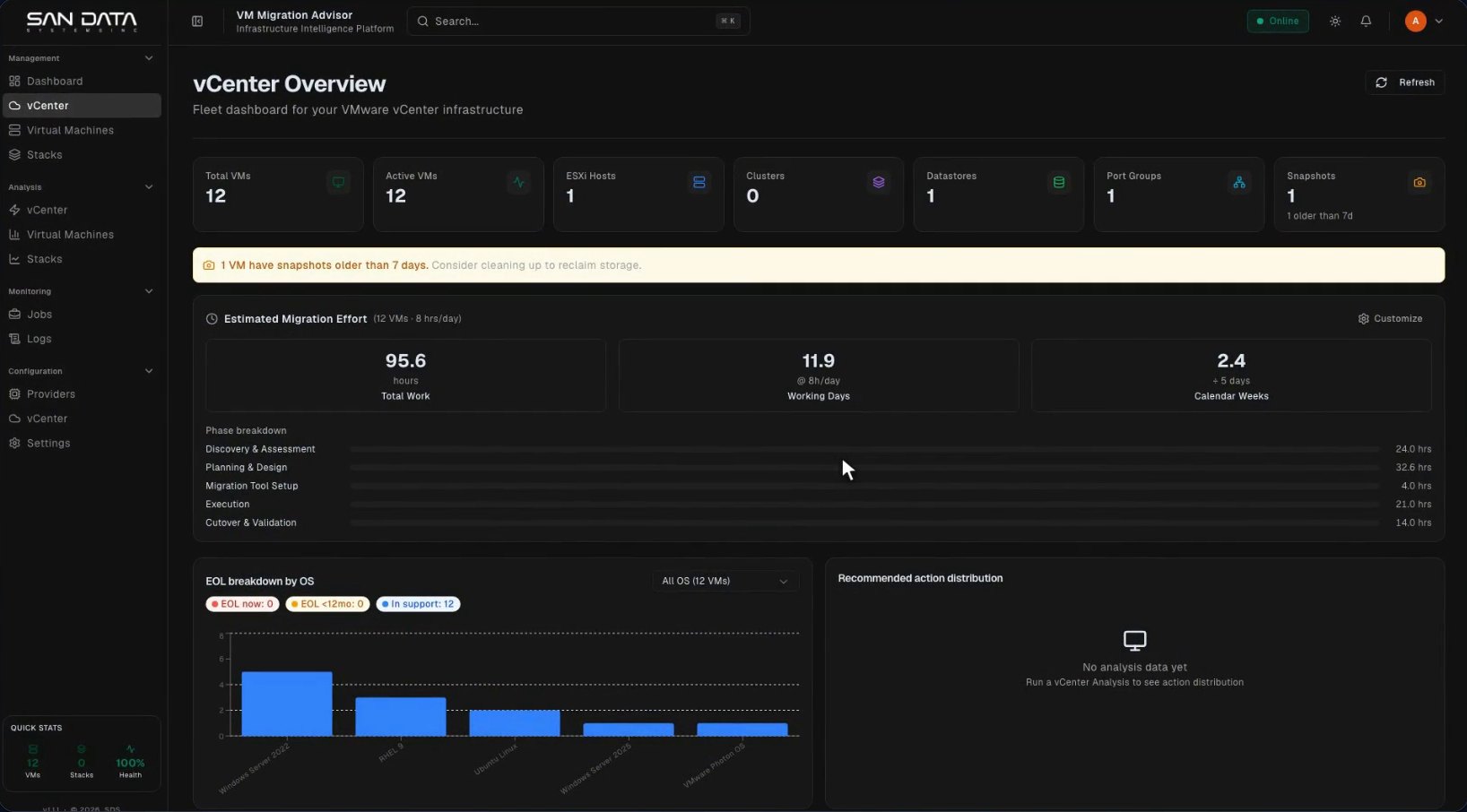
The whole estate on one screen
- VMs, hosts, clusters, datastores and port groups at a glance
- Effort estimated in hours, working days and calendar weeks, split by phase
- Operating systems out of support now or within 12 months, flagged
- Hygiene warnings, such as snapshots older than seven days
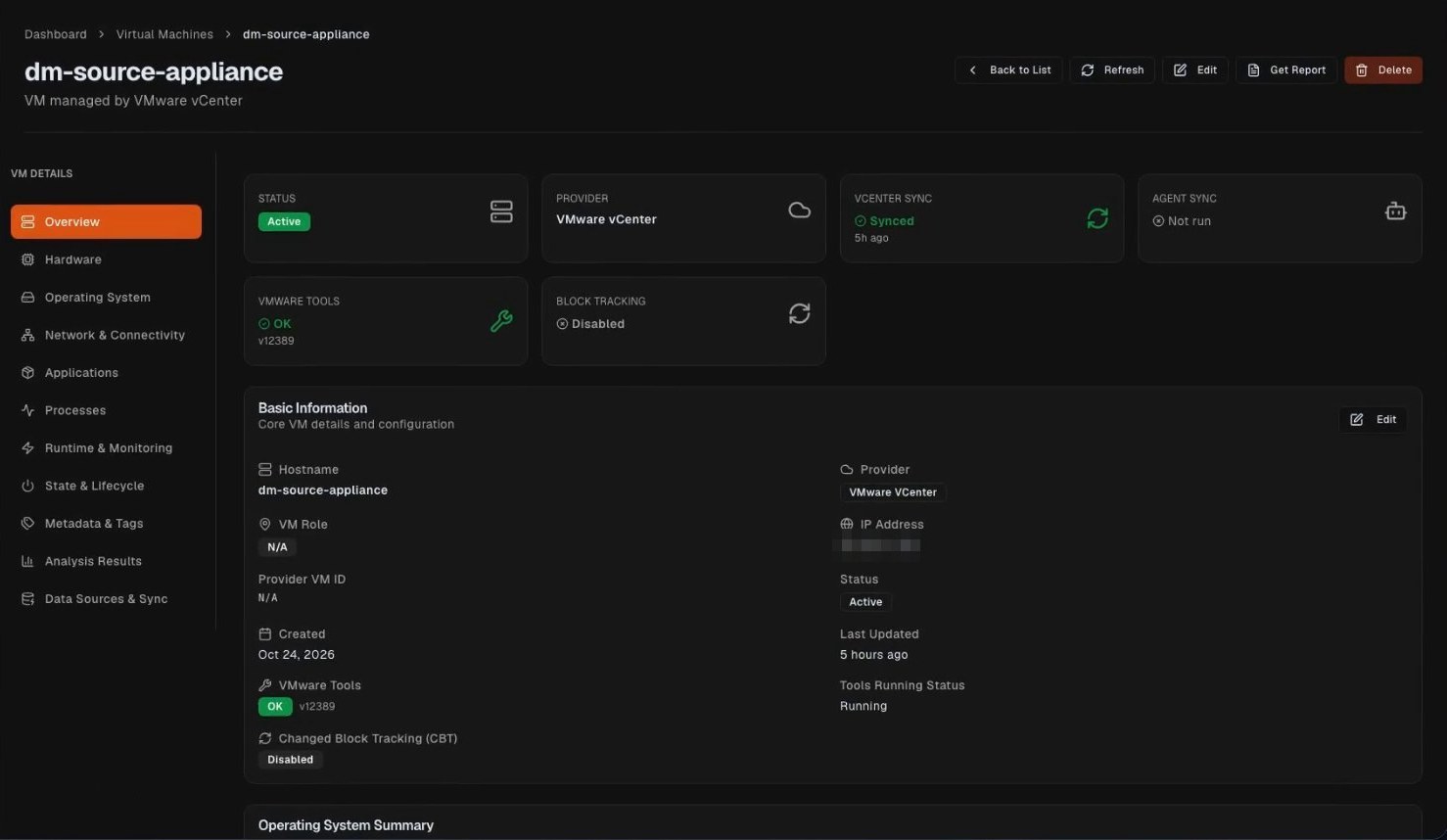
Every VM, inside and out
- Hardware, operating system, network and connectivity
- Applications, processes and runtime performance history
- VMware Tools and changed block tracking status
- A report for any single VM, one click away
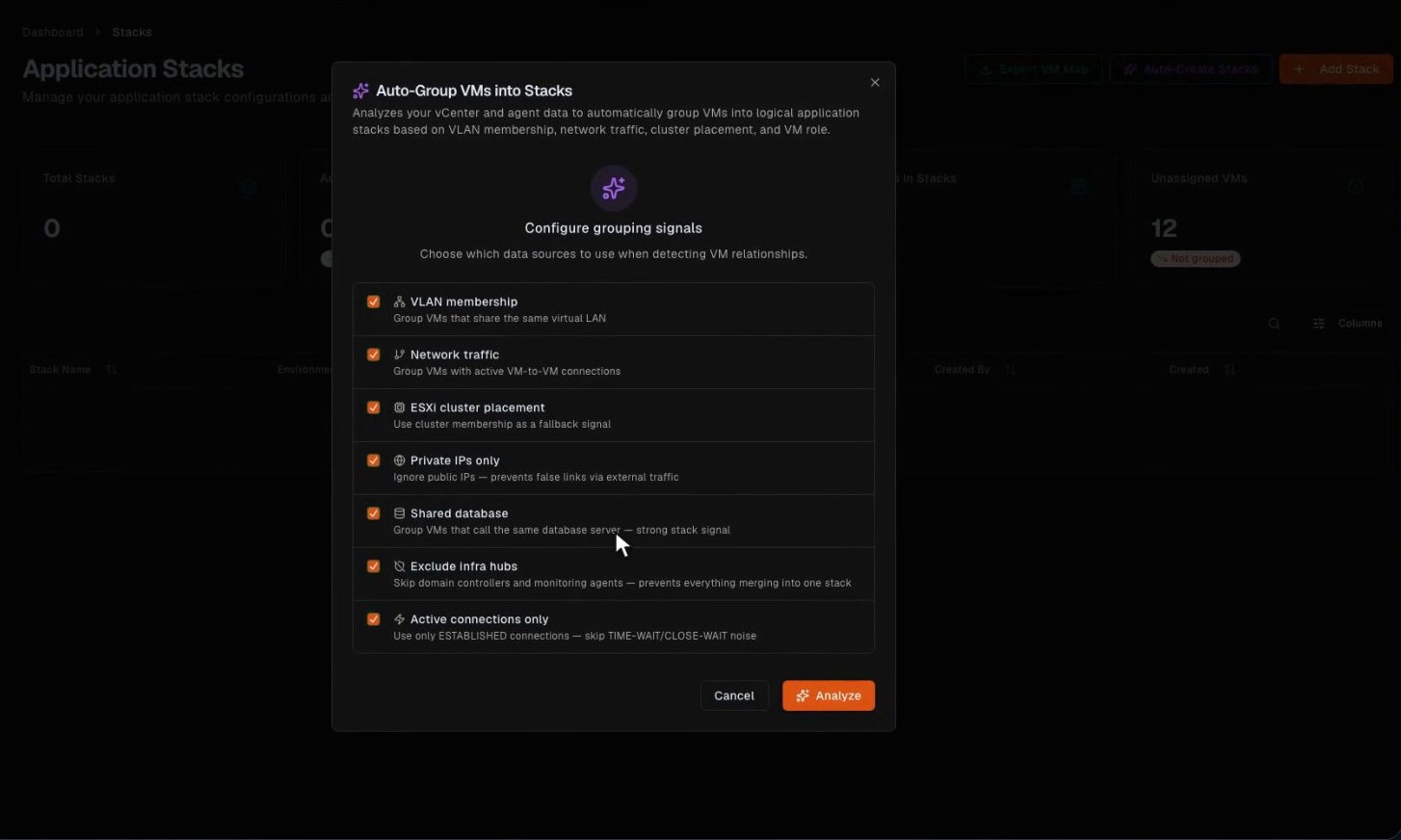
Stacks found for you
- Built from the agent's view of real traffic between VMs
- Choose the grouping signals, from VLAN membership to shared databases
- Review and correct the stacks before they go into the plan
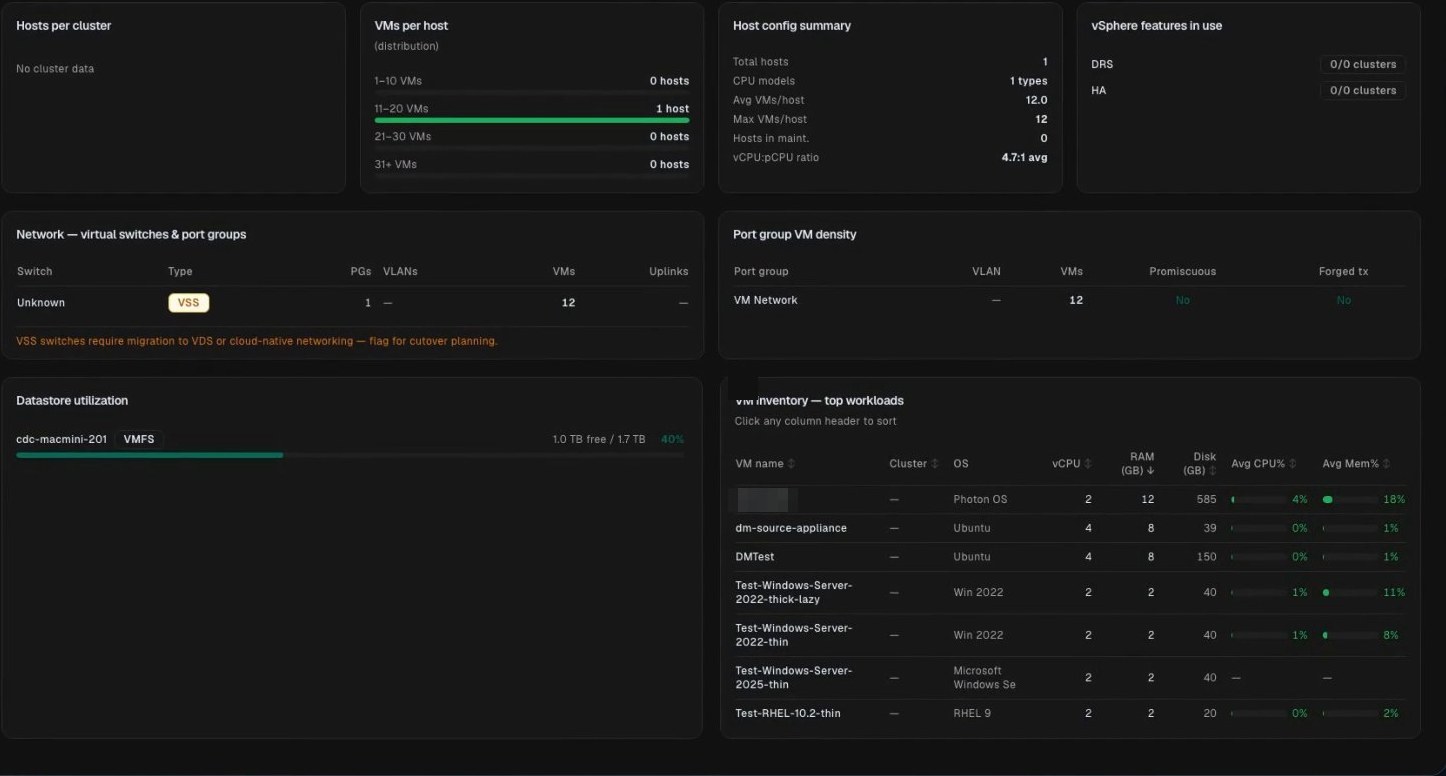
The details that change a plan
- VMs per host and vCPU to physical CPU ratio
- DRS and HA features in use
- Virtual switches and port groups, with standard switches flagged for network planning
- Datastore utilization and the busiest workloads
250+ VMs, planned in three weeks.
A media company wanted to leave VMware for Microsoft Hyper-V across a main data center and several smaller sites, reusing the hardware it already had. Many servers depended on each other, and most of those links were never written down.
VM Migration Advisor went through every VM, used real network traffic to find which servers had to move together, and marked each VM to migrate as is, rebuild or retire.
VMs assessed and planned
from kickoff to signed-off plan, including customer workshops, report and readout
VMs could be retired instead of moved
got its own wave plan, with test and dev moving before production
Insights you can act on.
Every assessment produces a set of clear outputs your architects, managers and finance team can all use.
Estate health
Hosts, clusters, storage, network and OS end-of-life status in one view.
Readiness scorecard
A clear go, fix or hold for every VM, with the risks explained.
Dependency map
Which VMs talk to each other, grouped into application stacks.
Migration strategy
Rehost, replatform, refactor or retire, for every VM.
Platform ranking
Target platforms scored for each workload.
Wave plan
Move groups in the right order, with a rollback approach.
Rightsizing report
Where capacity can shrink before or after the move.
Effort estimate
Hours, days and weeks across discovery, planning, tool setup, execution and cutover. You can adjust the phases.
The right move for every VM.
Not every VM should move the same way, and some should not move at all. VM Migration Advisor looks at each VM and its application stack and recommends the approach that fits.
Rehost
Lift and shift
Move the VM as it is to the new platform. Fastest, with the least change.
Replatform
Lift, tweak and shift
Move with small changes, such as an OS upgrade or a different storage or network setup.
Refactor
Re-architect
Rework the application for the new platform, for example as containers on OpenShift.
Retire
Switch off
Turn off VMs nobody needs any more instead of paying to move them.
Each recommendation comes with the reasons behind it, so your team can accept it or change it.
Public cloud, containers or on-premises, compared.
Every VM and stack is scored against the target platforms you are considering, so each application lands where the facts say it should.
AWS
Including EC2 and EKS
Microsoft Azure
Including Virtual Machines and AKS
Google Cloud
Including Compute Engine and GKE
Containers
Including Kubernetes and Red Hat OpenShift
On-premises
Including HPE VME and Hyper-V
When you are ready to move, Data Mover takes VMs to HPE VME, Red Hat OpenShift or AWS today, with Azure, Google Cloud and Hyper-V coming soon. See what Data Mover supports.
Good to know.
Do we have to migrate to use it?
No. Many teams use VM Migration Advisor to understand their estate, plan a renewal or rightsize, with no migration planned yet.
Do we need a separate dependency mapping tool?
No. Application dependency mapping is built into VM Migration Advisor, so there is no extra tool to buy or vendor to manage.
What if we cannot give it vCenter access?
Upload an RVTools export instead. VM Migration Advisor registers the VMs from the file, and you can also add VMs by hand.
Do we need to install agents?
No. The agent is optional. Inventory, sizing and readiness come from vCenter or the RVTools export. Install the lightweight agent on the VMs you want to see inside, and it adds in-guest detail such as applications, processes and firewall rules, plus the application dependency map.
How long does an assessment take?
The analysis runs in minutes once your VMs are in. Capturing traffic for the dependency map takes longer, and a full engagement with workshops and sign-off takes days to a few weeks, depending on the size of the estate.
Does it tell us how to move each VM?
Yes. For every VM it recommends a strategy: rehost (lift and shift), replatform, refactor or retire, with the reasons behind it.
Which platforms does it compare?
It scores and ranks target platforms across public cloud, containers and on-premises, including AWS, Azure, Google Cloud, Kubernetes, Red Hat OpenShift, HPE VME and Hyper-V.
How big an estate can it handle?
From a single application to more than 1,000 VMs.
What does it cost?
The first assessment of up to 50 VMs is free, and you keep the results. For larger estates, talk to us and we will scope it with you.
Tools and people, from one team.
No extra tools to buy. No vendors to coordinate.
Assess
VM Migration Advisor maps your estate and its dependencies.
Plan
Our engineers review the waves and the plan with your team.
Move
Data Mover migrates the VMs to HPE VME, OpenShift or AWS with near-zero downtime.
Sign off
One team and one contract, from the first scan to the final sign-off.
Get a free assessment.
We run VM Migration Advisor on up to 50 of your VMs at no cost and walk you through the results. For larger estates, talk to us.